🚀 Getting started
Coinly keeps every euro you earn and spend in one private ledger that lives on your phone. When you first open the app, a short setup wizard helps you pick your currency, create your first account, and (optionally) lock the app with a PIN. After that you land on your dashboard — ready to log your first transaction.
Find your way around
Everything is reachable from the bar at the bottom of the screen. The five buttons stay with you everywhere in the app:
- Home — your balance, recent activity, budgets and goals at a glance.
- History — every transaction, with search and filters.
- Add — the big gold + button to record income, an expense or a transfer.
- Analytics — charts that show where your money goes.
- More — settings, accounts, backups and extra tools.
🏠 Your dashboard
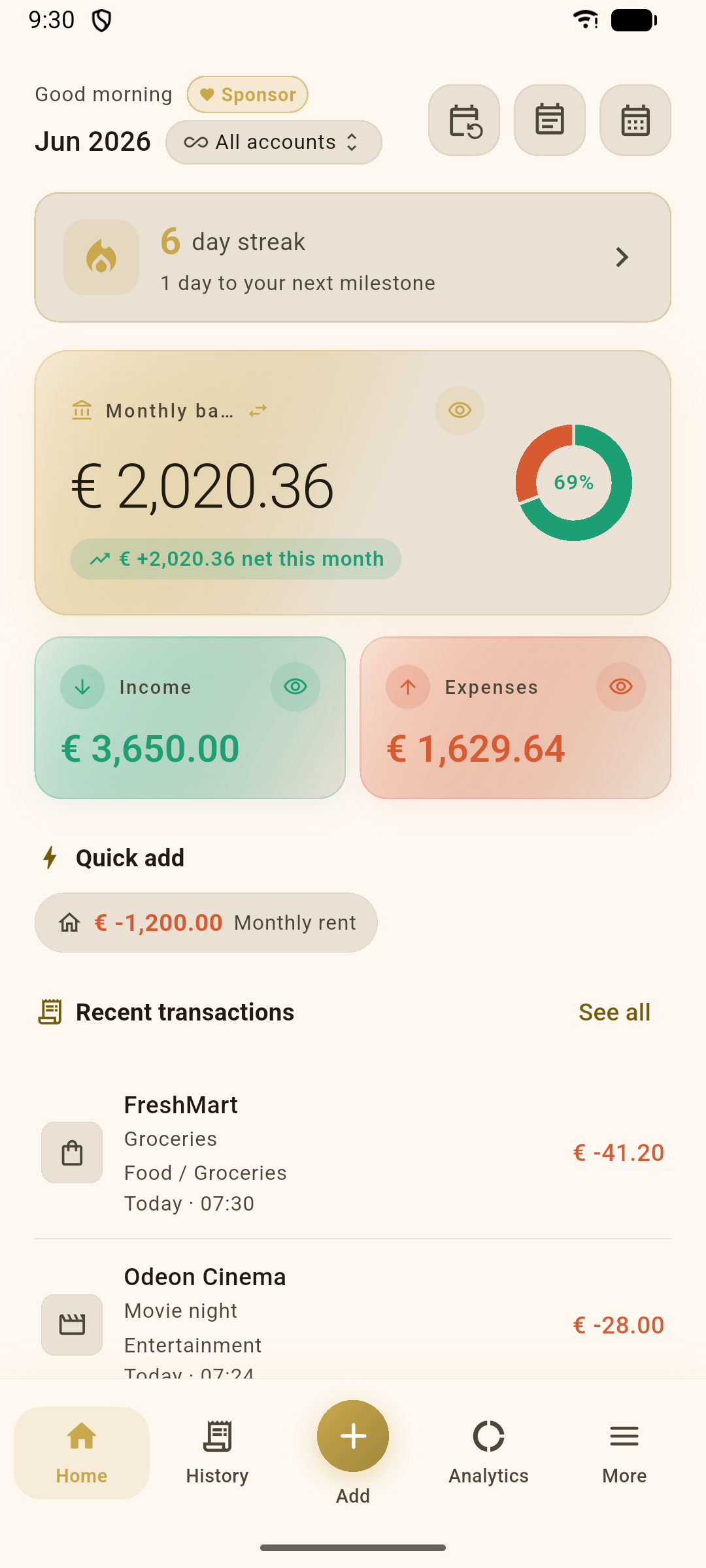
The home screen is your daily snapshot. It greets you, shows the month you’re viewing, and rolls up your money into a few easy‑to‑read cards.
Read it top to bottom
- Month & account — tap All accounts to switch which account (or combined view) you’re looking at.
- Logging streak — counts the days in a row you’ve recorded activity, to help build the habit.
- Monthly balance — income minus expenses this month, with a ring showing how much of your spending budget is used. Tap the eye to hide amounts.
- Income & Expenses — this month’s totals, side by side.
- Quick add — one‑tap chips for transactions you log often.
- Recent transactions, Category budgets and Savings goals previews — each with a See all link.
➕ Adding transactions
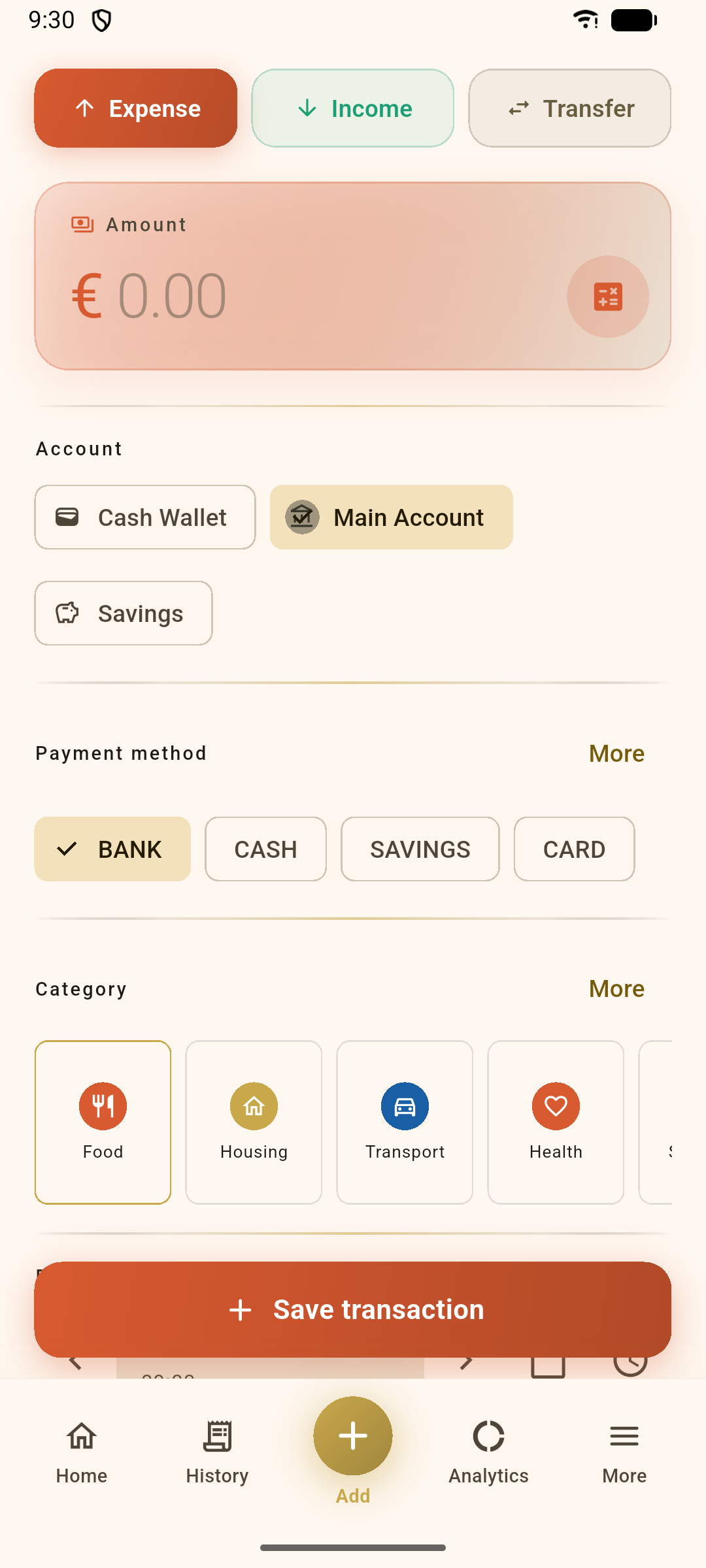
Tap the gold + in the centre of the bottom bar to open the entry screen. Choose Expense, Income or Transfer at the top, type an amount, and fill in as much (or as little) detail as you like.
What you can capture
- Amount — type it, or tap the calculator icon to add things up.
- Account — which wallet the money moves in or out of.
- Payment method — Bank, Cash, Card, Savings… or type your own.
- Category — pick from the grid, or tap More for the full list and to create new ones.
- Note, date & time — add context and back‑date entries.
- Receipt — attach a photo or PDF; Location — tag where it happened (optional).
- Recurring — turn this into a repeating entry (see Recurring).
When you’re done, tap Save transaction.
🔄 Transfers
Moving money between your own accounts isn’t spending — so Coinly treats it specially. A transfer leaves one account and arrives in another without ever counting as income or an expense in your totals.
How to move money
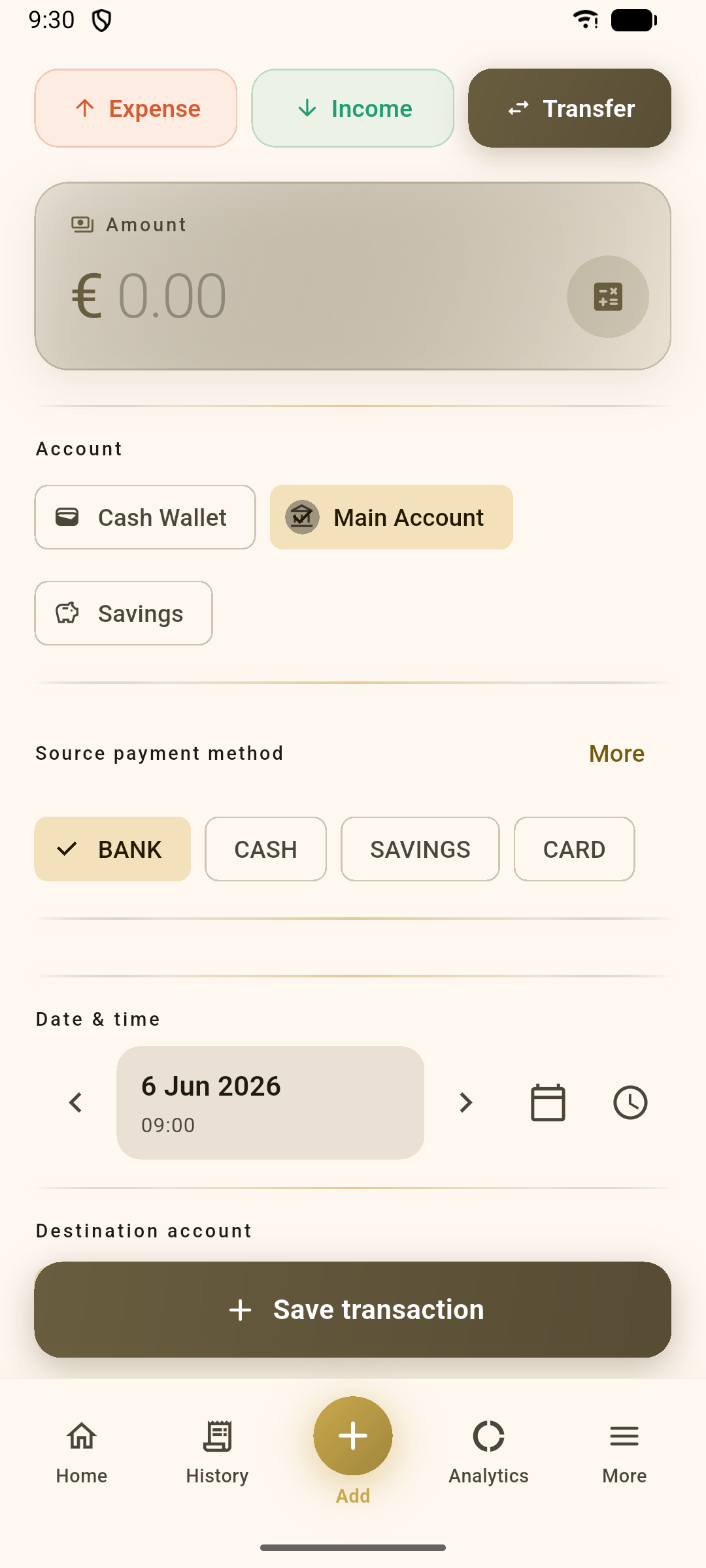
- Open Add and choose the Transfer tab.
- Enter the amount and pick the source account (where it leaves from).
- Choose the source and destination payment methods.
- Pick the destination account (where it lands) — or the same account to just change payment method.
- Save. The amount disappears from one balance and appears in the other.
🏦 Accounts
Each account is its own independent ledger — a bank account, a cash wallet, savings, a card. You can keep them separate or view everything combined.
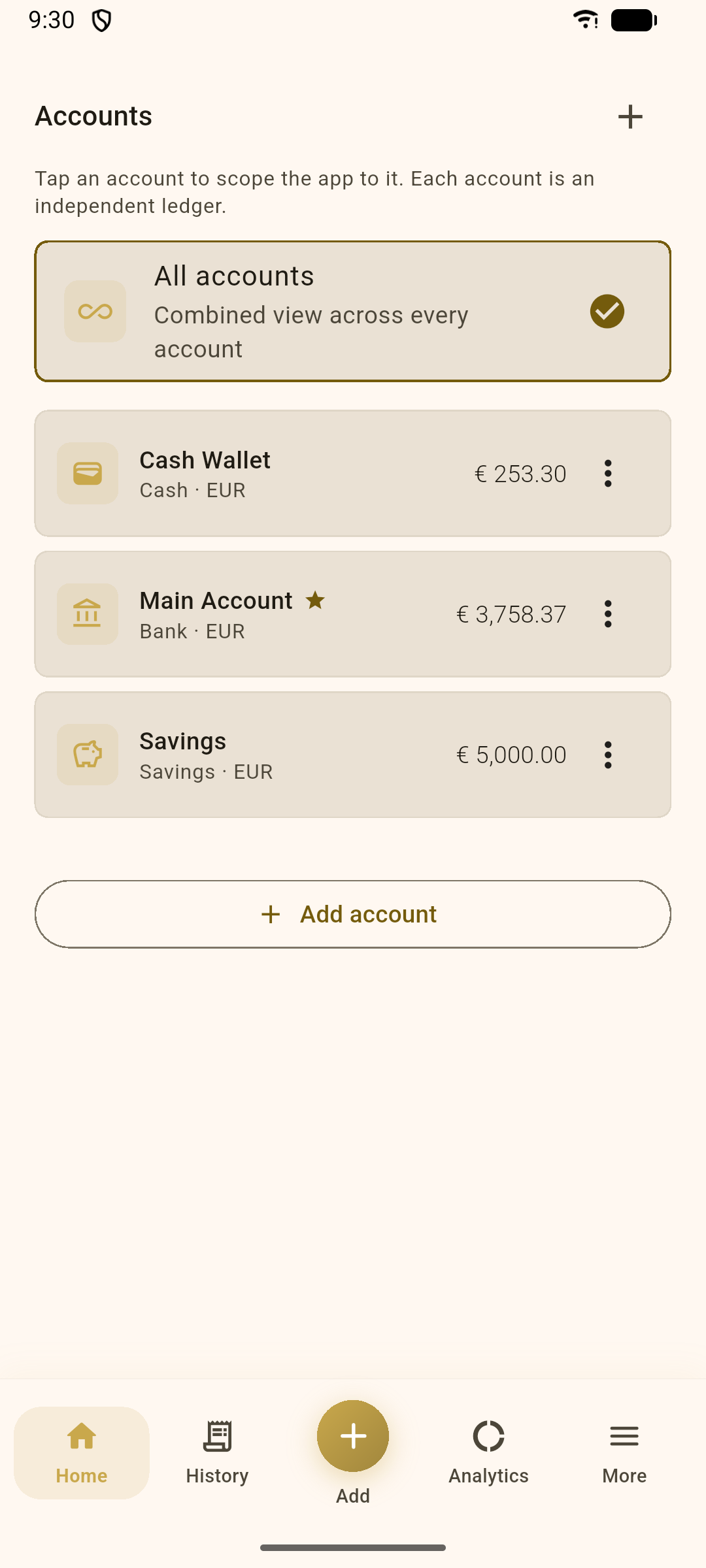
Manage your wallets
- Tap + to add an account — give it a name, type, currency and starting balance.
- The ⭐ marks your default account (pre‑selected when adding transactions).
- Tap an account to scope the whole app to it; choose All accounts for a combined picture.
- Use the ⋮ menu on each account to set it as default or archive it.
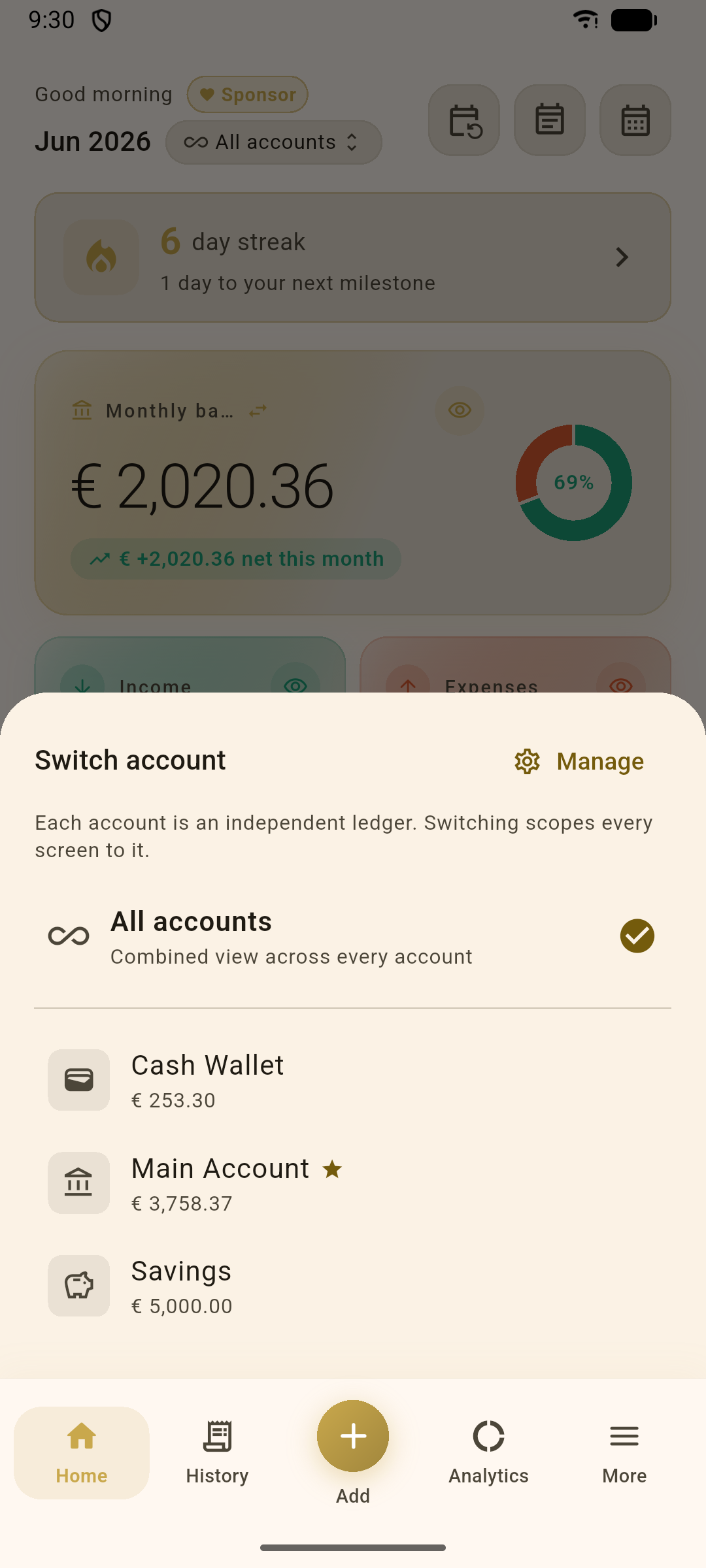
Switch in a tap
From the dashboard, tap the account chip near the month name to pop up the switcher. Pick any account to instantly re‑scope your balance, history and analytics — or tap Manage to open the full Accounts screen.
🧾 History & search
The History tab is the complete record of everything you’ve logged, newest first and grouped by day.
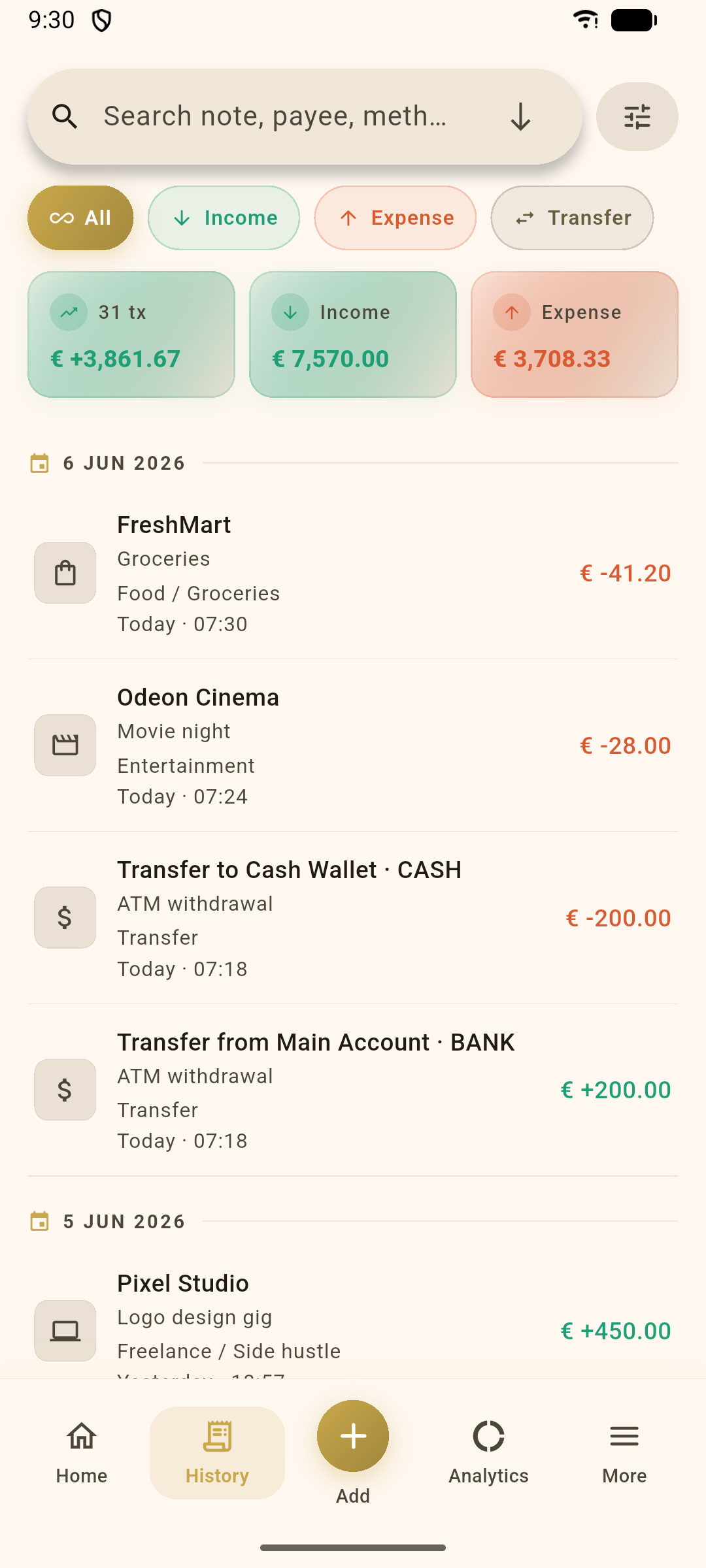
Find anything fast
- Search across notes, payees and payment methods.
- Filter by type with the All / Income / Expense / Transfer chips.
- Tap the sort and filter icons for date ranges, amount ranges, categories, and “with receipt / note only”.
- Each day shows a running income / expense summary.
- Tap a transaction to edit it; long‑press for copy or delete.
📊 Analytics
The Analytics tab turns your transactions into clear, colourful insight. Choose a Day, Week, Month or Year period and step backward or forward in time.
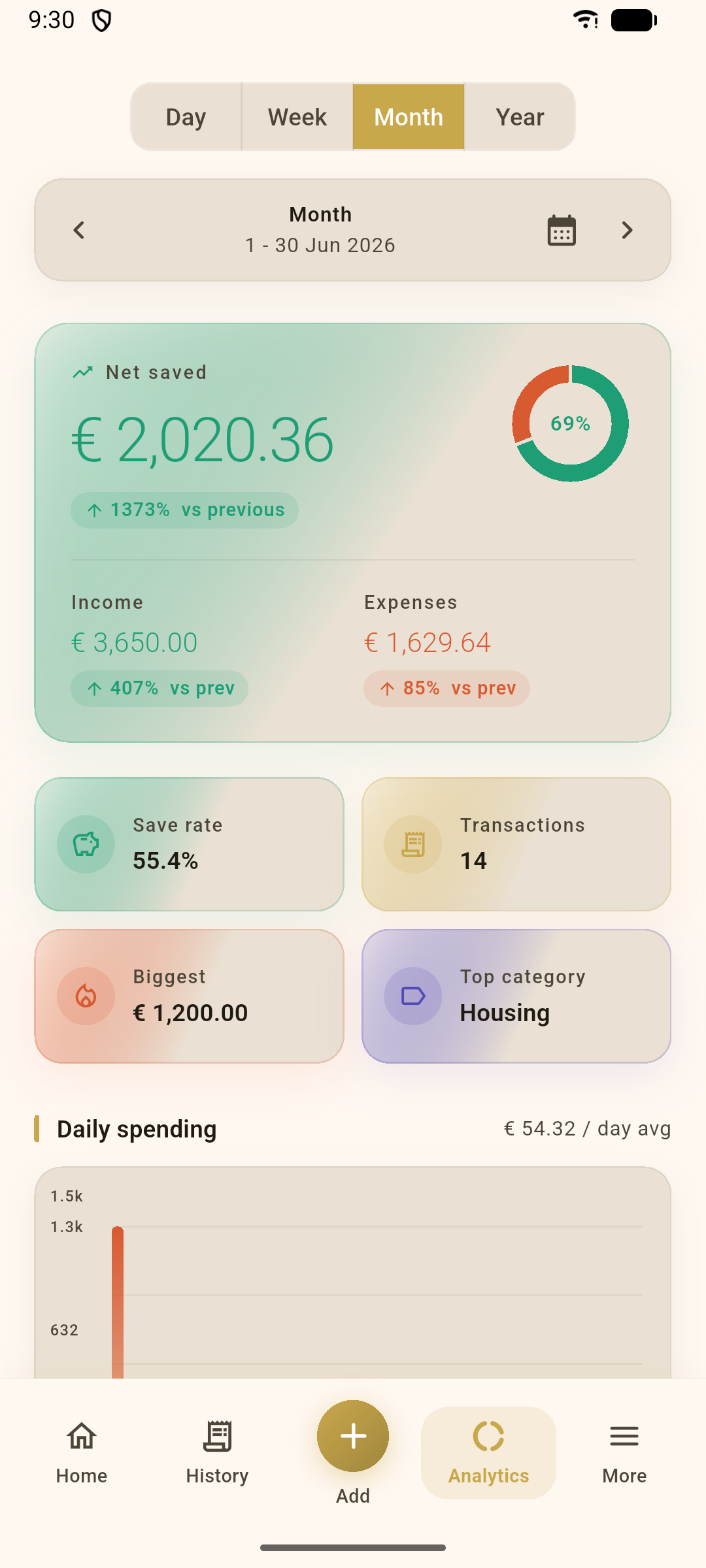
Your numbers at a glance
- Net saved for the period, with a comparison to the period before.
- Income vs Expenses, your save rate, transaction count and biggest expense.
- Top category — where most of your money went.
- Daily spending chart with your average per day and a pace projection.
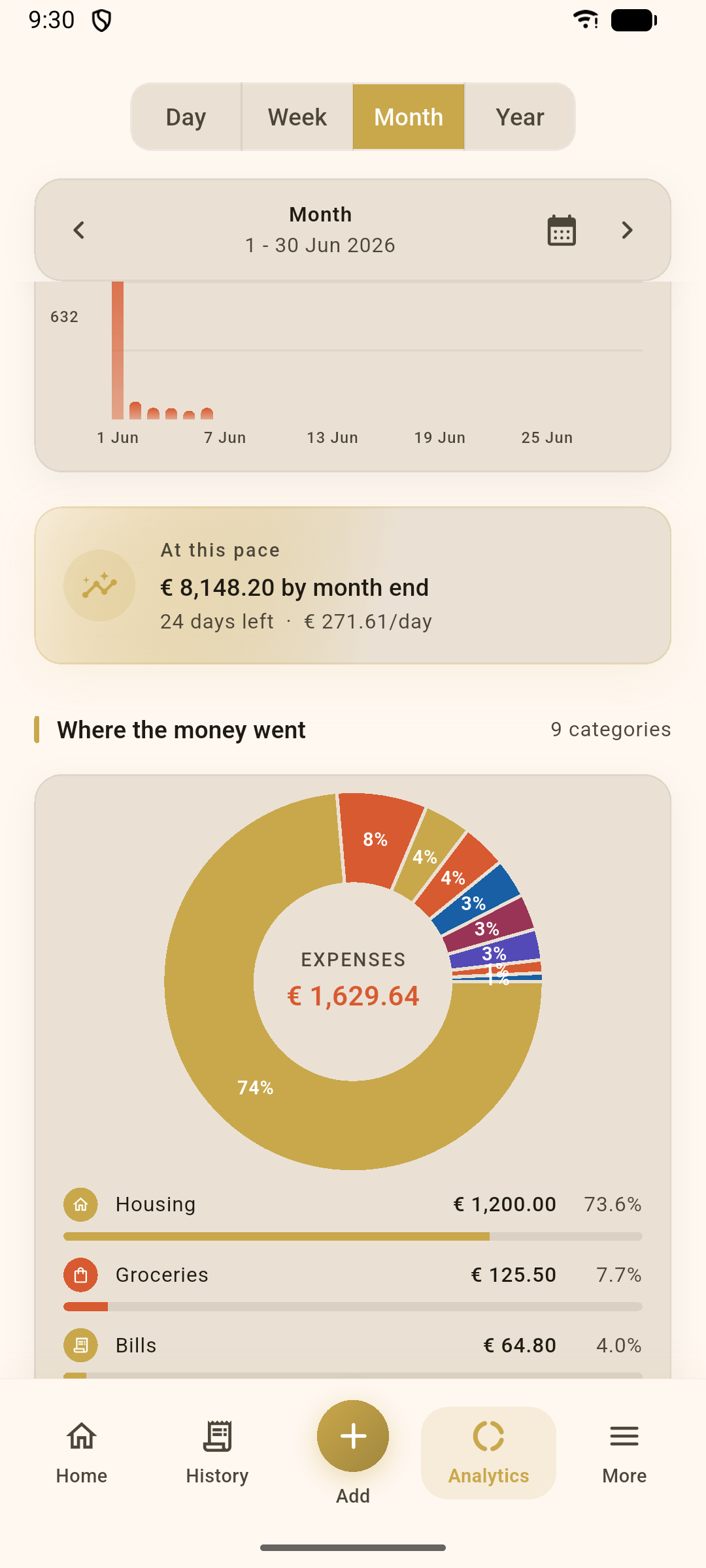
Where the money went
Scroll down for the breakdown charts: a donut of spending by category, your income sources, biggest expenses, top payees, and spending by payment method and day of the week. It’s the quickest way to spot a leak in the budget.
🎯 Budgets
Set a spending limit on any category and Coinly tracks it for you — week by week, month by month, or yearly.
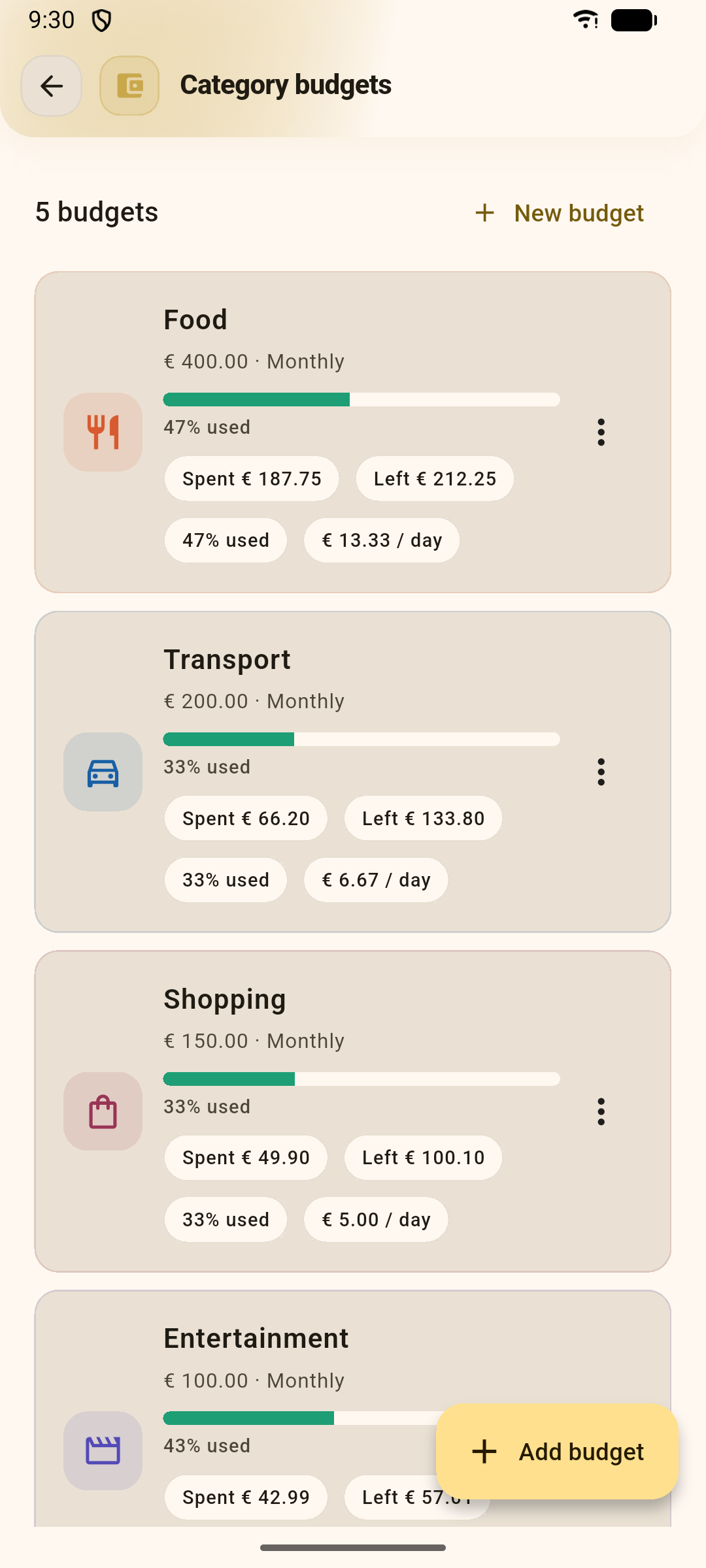
Stay on track
- Tap New budget, pick a category and an amount, and choose the period.
- Each card shows spent, left, percentage used and a handy per‑day figure.
- The ring and bar turn from gold toward red as you approach — and pass — the limit.
- Optionally get a notification when you reach your alert threshold, carry unspent money over with rollover, or include subcategories.
🚩 Savings goals
Saving for a holiday, a new laptop or a rainy‑day fund? Create a goal, set a target, and watch the progress bar fill.
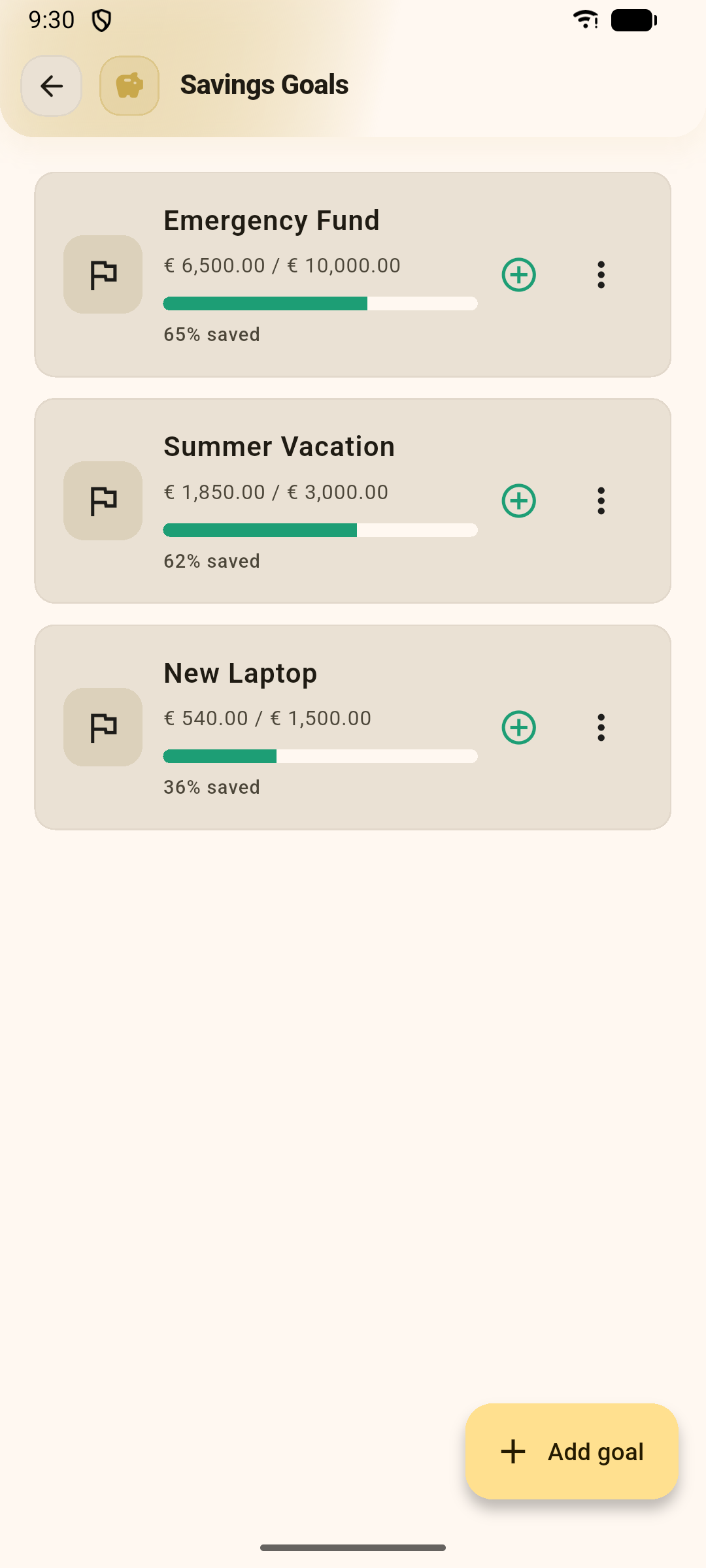
Save with purpose
- Tap Add goal, give it a name, a target amount and an optional target date.
- Each card shows saved / target, percentage and days remaining.
- Tap the + to add money to a goal (or the ⋮ menu to withdraw / edit).
- Set up an auto‑save to contribute automatically every month.
📅 Calendar
A month‑at‑a‑glance view of your spending rhythm. Open it from the calendar icon at the top of your dashboard.
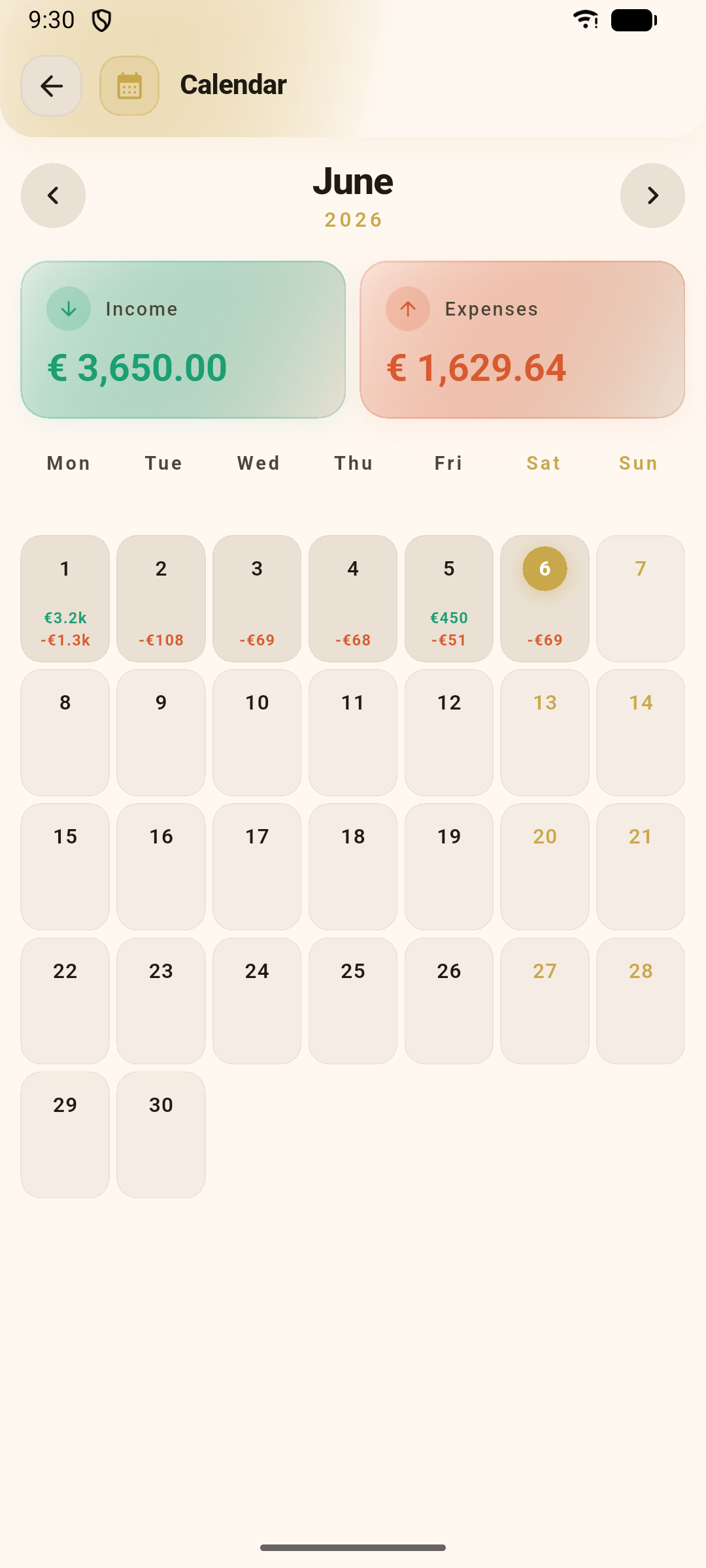
See your month
- Every day shows its income and expense totals.
- The header sums up the whole month’s income and expenses.
- Tap any day to see that day’s transactions.
- Spot patterns — quiet days, payday spikes, and no‑spend days.
🔁 Recurring transactions
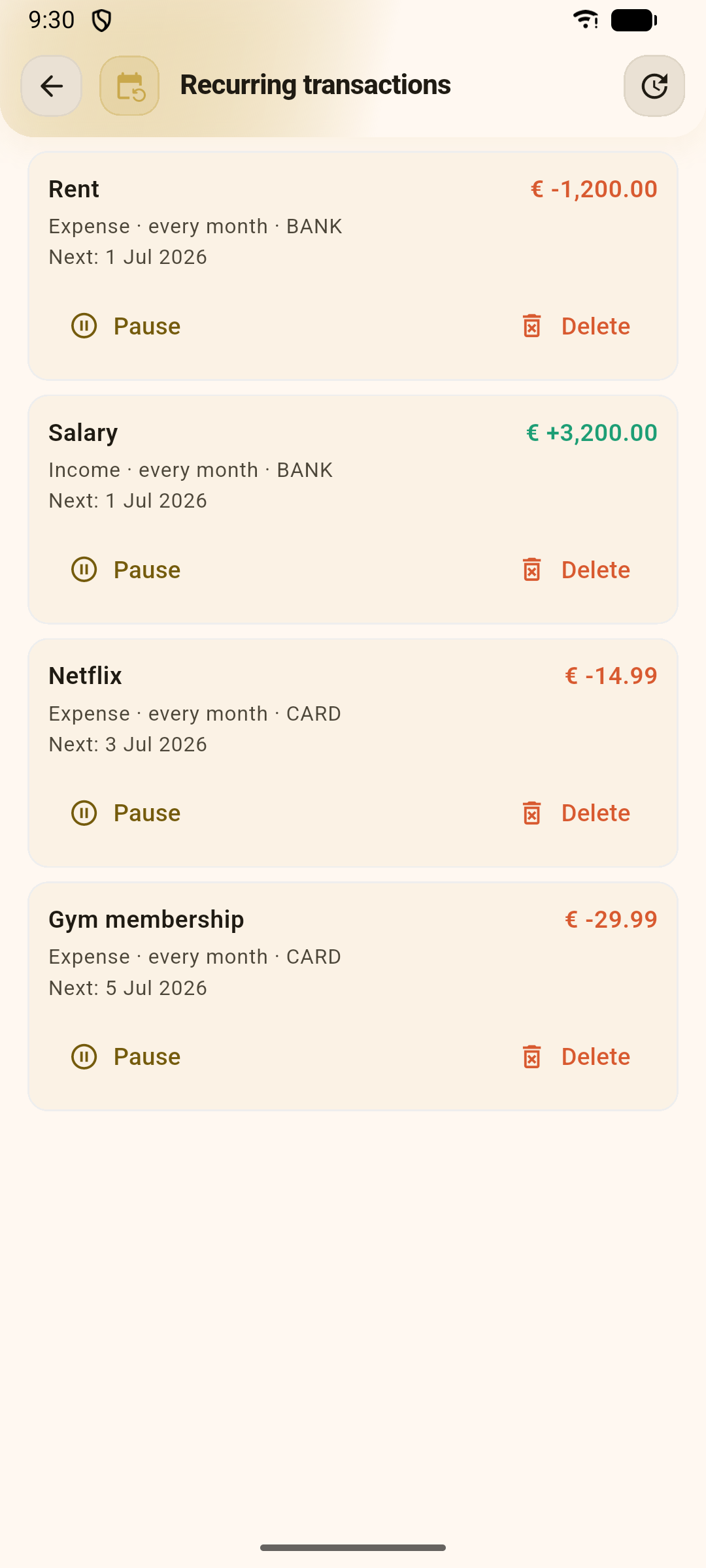
Rent, salary, subscriptions — anything that repeats. Set the rule once and Coinly logs it automatically on schedule.
Set it and forget it
- Turn on Recurring while adding a transaction, or manage rules from More ▸ Recurring transactions.
- Choose a frequency — daily, weekly, monthly or yearly — and an optional end date.
- Each rule shows when it will next run.
- Pause or Delete a rule any time; use catch up to fire anything that’s due immediately.
📓 Notebook
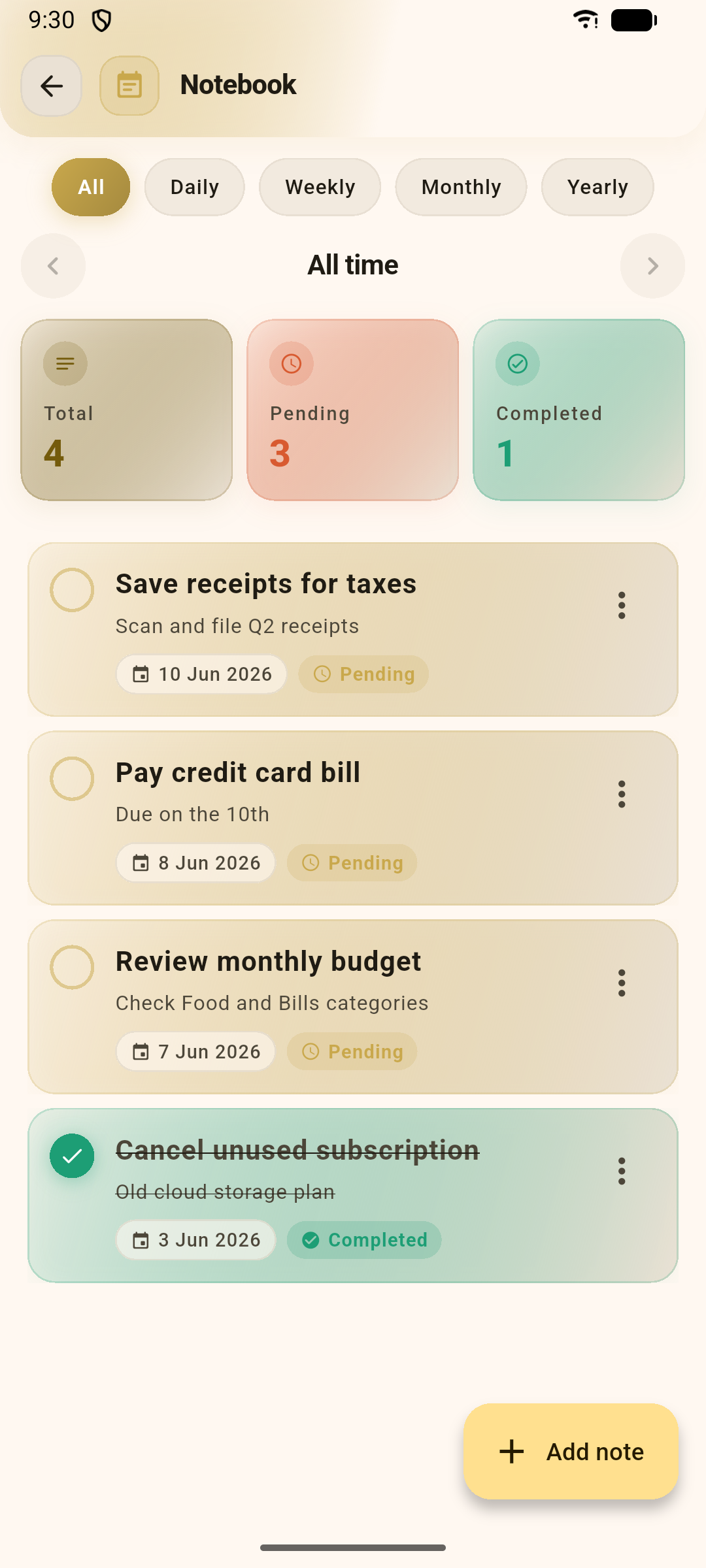
A simple checklist that lives alongside your money — for bills to pay, things to cancel, or anything you want to remember.
Keep little reminders
- Tap Add note to jot a title, details and a date.
- Tick a note when it’s done — counts show Total, Pending and Completed.
- Filter by All / Daily / Weekly / Monthly / Yearly to focus on a time window.
⚙️ Settings & preferences
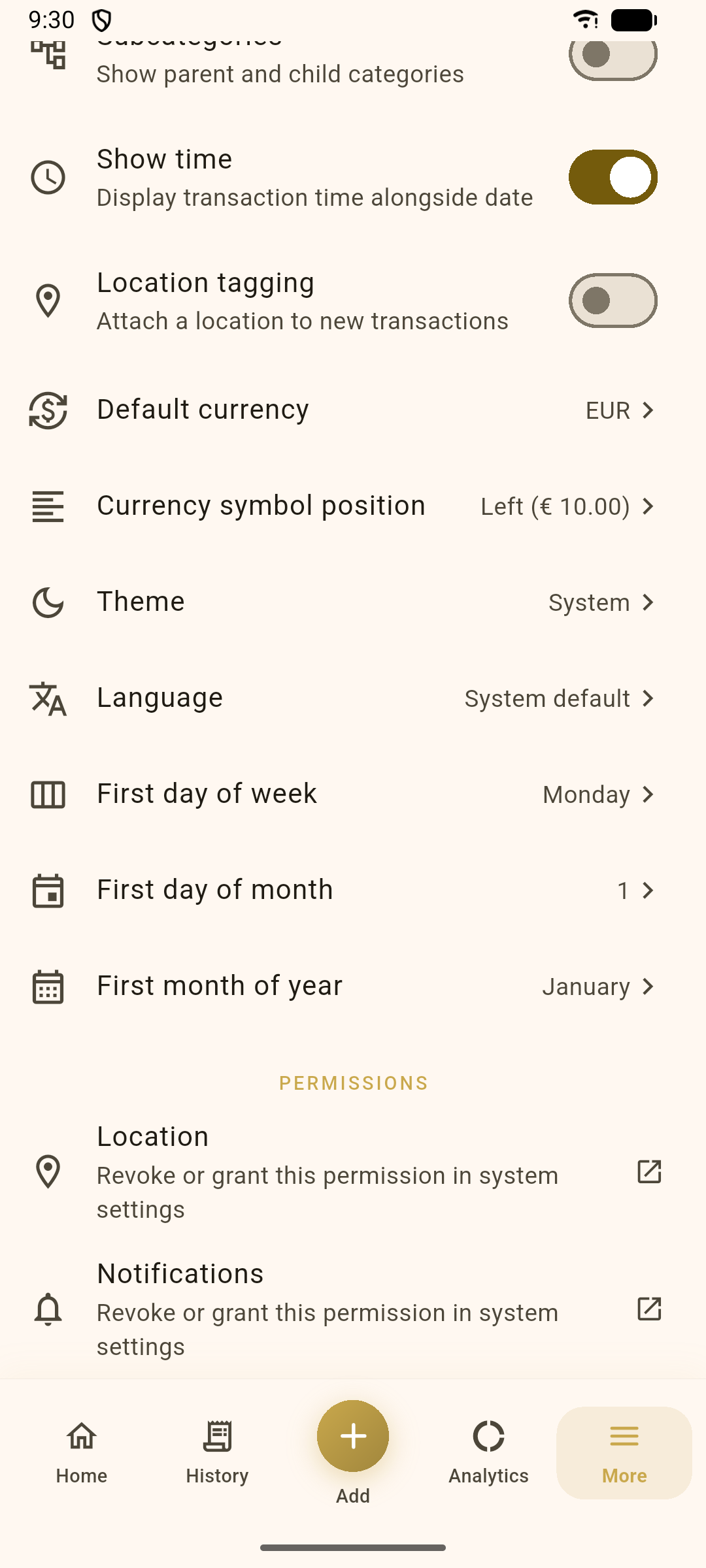
Open the More tab to make Coinly yours. Almost everything about how the app looks and behaves can be tuned here.
Make it yours
- Currency and symbol position (e.g. € 10.00 vs 10.00 €).
- Theme — System, Light or Dark — and Language (12 supported).
- First day of the week, month and year, to match how you budget.
- Toggle subcategories, transaction time, and location tagging.
- Set a daily reminder to keep your logging streak alive.
Reminders
A gentle daily nudge at a time you choose.
Theme
Light, dark, or follow your phone.
Language
Use Coinly in your language.
Permissions
Control location, notifications and camera access.
🛡️ Security
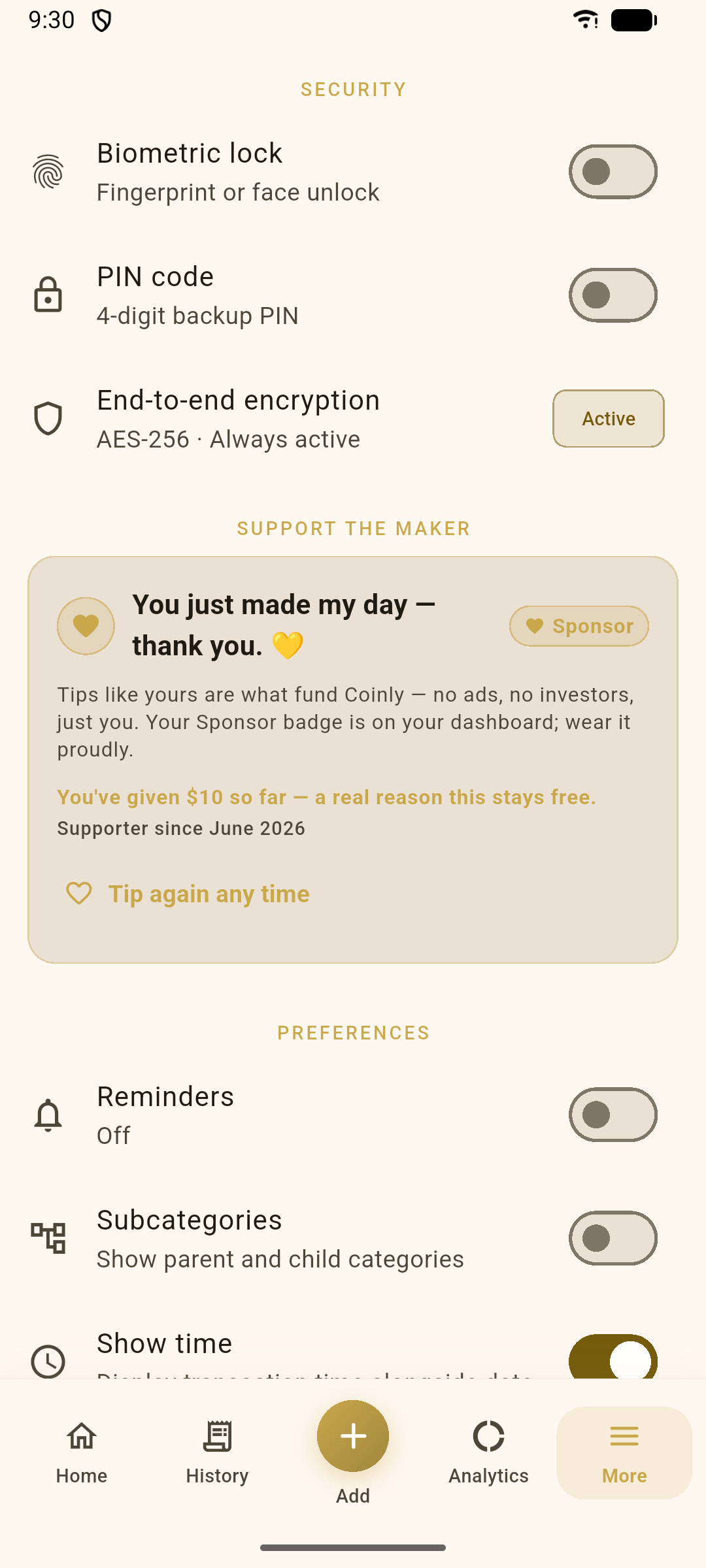
Your money data stays on your device and encrypted. You can add a lock so only you can open the app.
Lock it down
- PIN code — a 4‑digit code to unlock the app.
- Biometric lock — fingerprint or face unlock (needs a PIN as backup).
- End‑to‑end encryption — AES‑256, always on, shown as Active.
☁️ Backup & export
Because your data lives on your device, backups are how you keep it safe and move to a new phone. You’ll find everything under More ▸ Data.
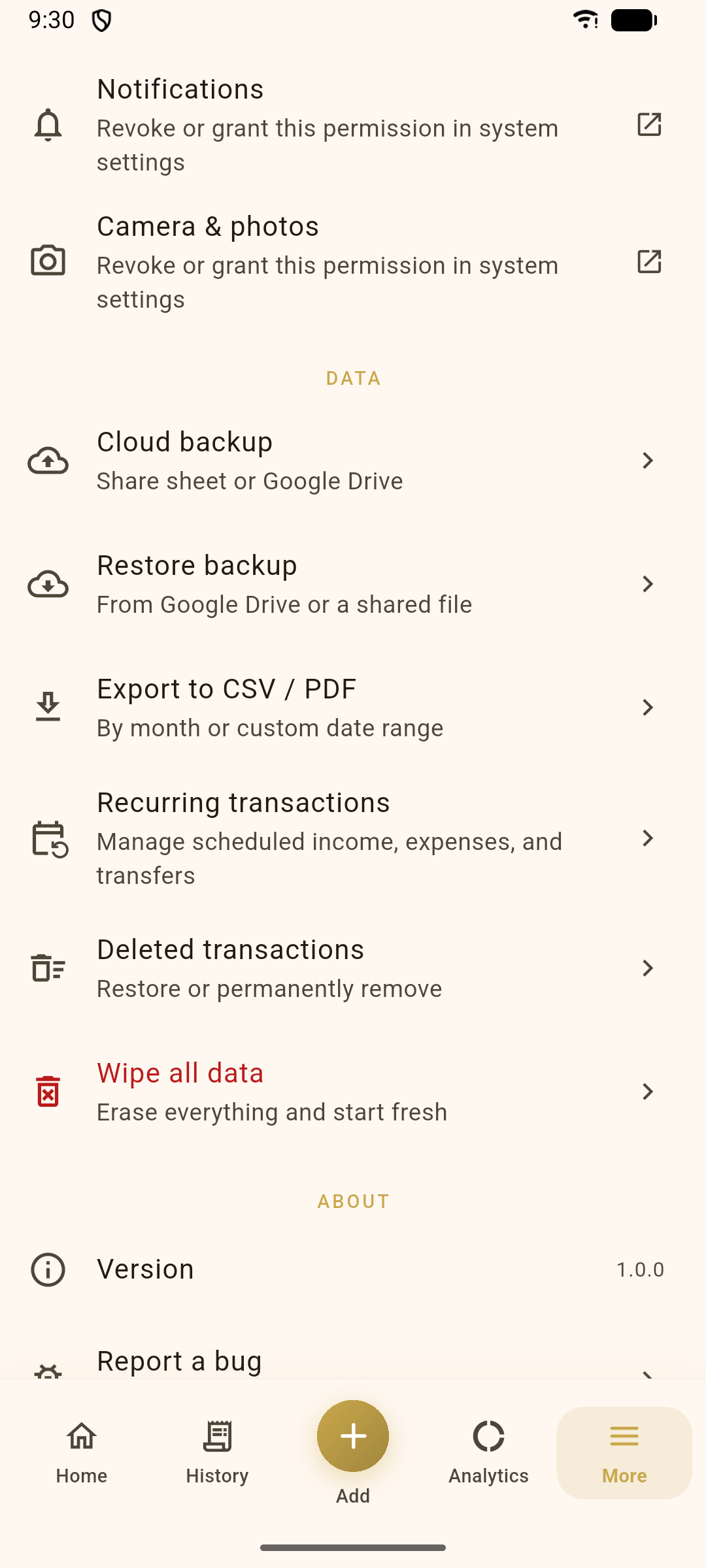
Keep your data safe
- Cloud backup — save an encrypted backup to Google Drive or share the file anywhere.
- Restore backup — bring your data back from Drive or a shared file.
- Export to CSV / PDF — by month or a custom range, for spreadsheets or your accountant.
- Recurring & Deleted transactions — manage schedules and restore from the trash.
💬 Frequently asked questions
Is my financial data private?
Yes. Everything is stored and encrypted on your device with AES‑256. Coinly is ad‑free, doesn’t require an account, and never sells or shares your data. Backups you create are also encrypted with a passphrase only you know.
Do I need an internet connection?
No. Coinly works fully offline. An internet connection is only used if you choose to back up to or restore from Google Drive, or check for an app update.
How do I move to a new phone?
On your old phone, open More ▸ Cloud backup and save a backup (to Google Drive or a file). On the new phone, install Coinly and use More ▸ Restore backup with the same passphrase.
What’s the difference between a transfer and an expense?
An expense is money leaving your control (a purchase). A transfer just moves money between your own accounts — it changes individual balances but never counts as income or spending in your totals.
Can I track more than one account or currency?
Yes — add as many accounts as you like, each with its own type and currency. View them individually or combined as All accounts. You can change the app’s default display currency in More ▸ Preferences.
I deleted a transaction by mistake — can I get it back?
Yes. Deleted transactions go to the trash. Open More ▸ Deleted transactions to restore them, or empty the trash to remove them permanently.
How do recurring transactions get added?
Coinly logs them automatically on schedule in the background. If the app hasn’t run for a while, open More ▸ Recurring transactions and use catch up to post anything that’s due.